Solution to the error "Not enough free disk space. The upgrade has aborted." updating Ubuntu.

We have just written another article about How to update Ubuntu from 22.04 to 22.10 and we encountered a couple of issues in the process. One of them occurred because of having little space on the /boot partition and the output that the update process throws is similar to the following:
Not enough free disk space
The upgrade has aborted. The upgrade needs a total of 433 M free space on disk '/boot'. Please free at least an additional 122 M of disk space on '/boot'. You can remove old kernels using 'sudo apt autoremove' and you could also set COMPRESS=xz in /etc/initramfs-tools/initramfs.conf to reduce the size of your initramfs.
The good news is that it is relatively easy to solve. We are going to make a couple of configurations that you can make to get the necessary space.
Before starting with each of the solutions, you must log in as root to the system to avoid typing in all sudo commands.
sudo suCompression of initramfs
To edit the way the initramfs is compressed, we can use a text editor such as nano or vim and open the following file.
vim /etc/initramfs-tools/initramfs.confFind the line to configure the COMPRESS compression and change it so that it has the value xz. If the line is commented out, you must also remove the # character.
COMPRESS=xzSave the changes and update the initramfs.
update-initramfs -uFinally, run the following command to remove any old kernels on your system.
apt autoremoveDeletion of old kernels
First, you can check the version of the kernel that your system is currently using.
root@server:/# uname -r
5.19.0-40-generic
This will serve you to contrast other possibly installed versions of the kernel on your system. To list all installed versions, you can use the following command:
root@server:/# dpkg -l | tail -n +6 | grep -E 'linux-image-[0-9]+' | grep ii
ii  linux-image-4.19.0-16-cloud-amd64 4.19.181-1  amd64  Linux 4.19 for x86-64 cloud (signed)
ii  linux-image-4.19.0-22-cloud-amd64 4.19.260-1  amd64  Linux 4.19 for x86-64 cloud (signed)
ii  linux-image-4.19.0-23-cloud-amd64 4.19.269-1  amd64  Linux 4.19 for x86-64 cloud (signed)
As you can see in this case there are three versions of the Linux kernel installed. It is recommended to leave only the last two. So we can easily remove the oldest one.
update-initramfs -d -k 4.19.0-16-cloud-amd64Still, you can try running dpkg to remove any trace of the kernel if any.
dpkg --purge 4.19.0-16-cloud-amd64After this, you can verify by listing the contents of the /boot folder to search for any old kernel files.
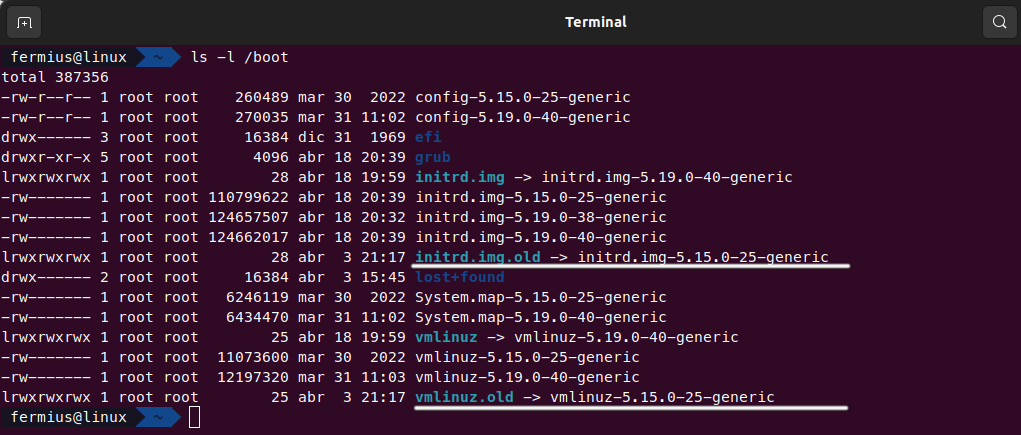
If so and you find a file as shown below with the .old extension, you can safely delete the associated file.
rm /boot/initrd.img-5.15.0-25-generic
rm vmlinuz-5.15.0-25-generic
Then in terms of leaving everything consistent, run the following command to update the GRUB and remove those unnecessary entries from the selection menu when your machine boots.
update-grubFinally, you can execute the following series of commands to fix any broken packages or unused packages on your system.
apt install -f
dpkg --configure -a
apt autoremove